Hands-Off JIRA Automation: Streamlining CI/CD for Agile Teams
CI/CD Automation with JIRA, Jenkins, Slack, GitHub/SVN, and Docker
In this blog, we'll explore how CI/CD automation with tools like JIRA Cloud, Jenkins, Slack, GitHub, SVN, and Postman benefits Agile teams as a whole. Whether you're new to Agile or are working with an experienced team, automation can significantly reduce "JIRA paperwork" while keeping everyone focused on delivering value. By streamlining repetitive tasks, teams can spend more time on what matters—developing, testing, and delivering high-quality features.
Tools Overview
Here are the tools we use in this setup:
- JIRA Cloud: Tracks issues, ensuring transparency and alignment across the team.
- Jenkins: Automates build, test, and deployment processes, reducing manual steps.
- Slack: Keeps everyone informed in real time with notifications.
- GitHub/SVN: Manages code versioning, ensuring traceability to JIRA stories.
- Docker: Standardizes development environments, simplifying testing and deployment.
- Postman: Provides automated API testing to ensure code quality without manual intervention.
JIRA Automation for User Stories
One of the most time-consuming aspects of project management is manually tracking tasks. Automating the creation of sub-tasks when a user story or bug is logged benefits the entire team. Developers no longer need to waste time creating sub-tasks manually, testers can see exactly what's ready for QA, and project managers/scrum masters/PO have an organized, real-time view of progress.
By automating transitions (like moving a task to "In Progress" when development starts or "Ready for QA" once development is complete) teams can trust that JIRA reflects the current status without additional administrative work. This eliminates the risk of tasks being forgotten or stuck in the wrong stage, making daily standups and sprint reviews more efficient.
For new Agile teams, this automation reduces the learning curve, helping them focus on Agile practices rather than JIRA mechanics. For veteran teams, it cuts down on time spent managing JIRA, freeing up more time for development and innovation.
JIRA Cloud Automation
Open JIRA and expand the "Notifications" tab on the lefthand side of the menu. Select "Automation."
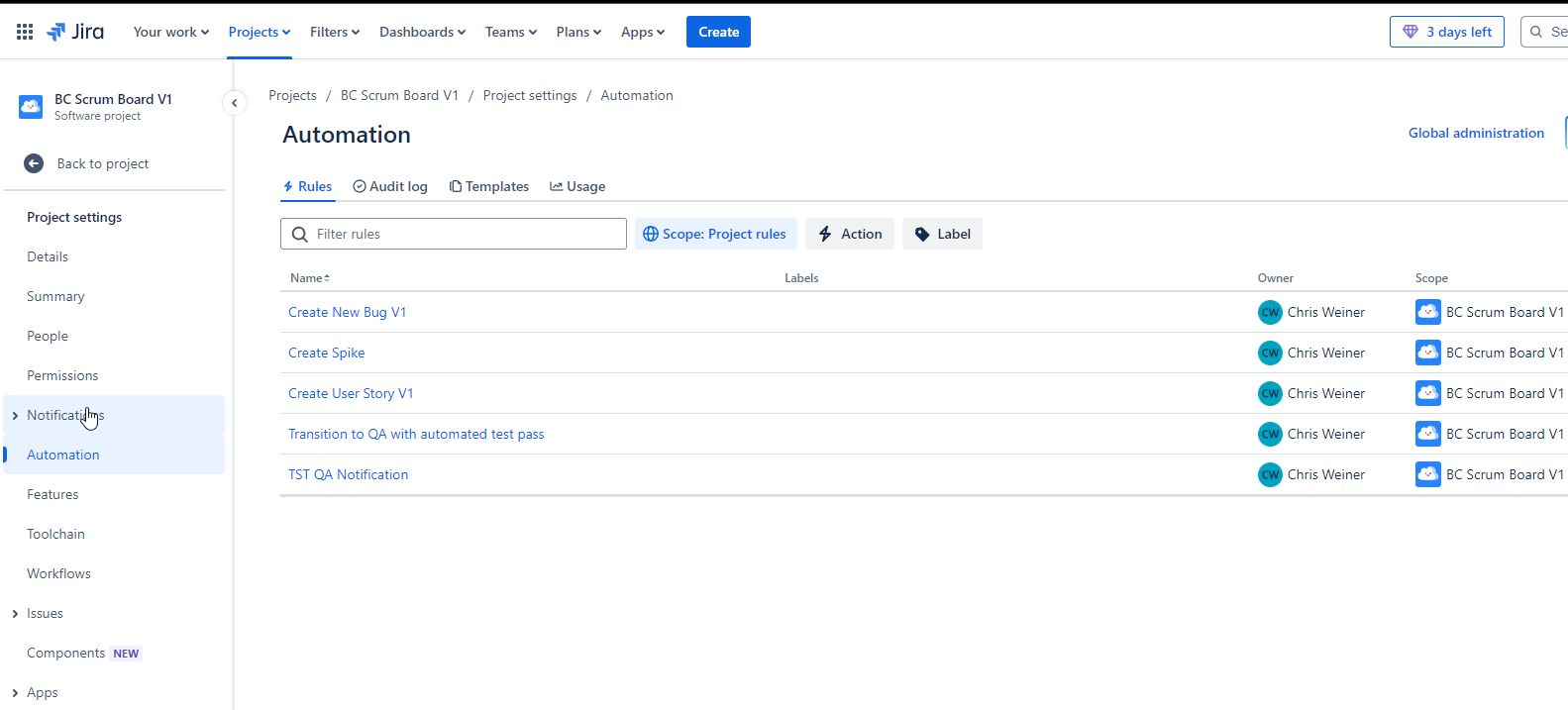
From here, you can define and manage automated "Rules" for workflows within the project. These rules allow you to create conditional, event-driven actions that help streamline processes, reduce manual effort, and ensure consistency in handling issues or tasks.
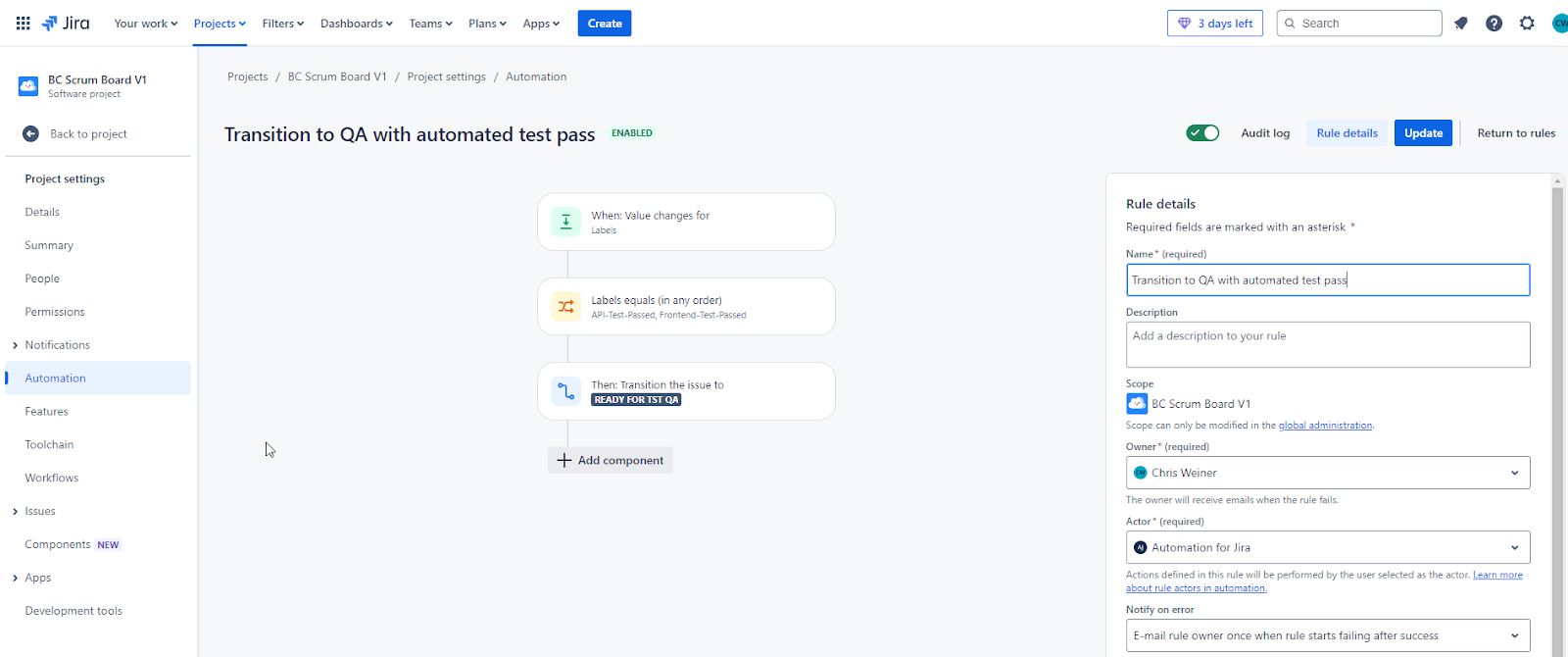
GitHub and Development Workflow
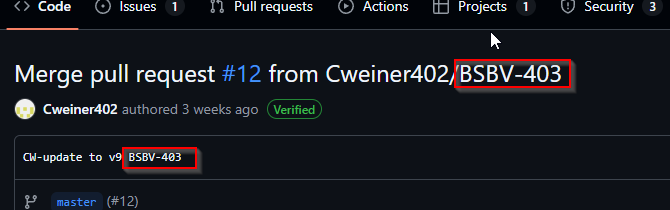
To link code changes directly to JIRA stories, we follow branch naming conventions tied to JIRA tickets (e.g., feature/PROJ-123). This ensures every commit is traceable back to the task it's tied to, giving developers a clear way to track progress.
This integration saves time for the entire team in several ways:
- Developers don't need to manually update JIRA tickets as the code progresses.
- QA testers can see when a feature is ready without asking developers for updates.
- Product Owners get a transparent view of how features are evolving in real time.
By reducing communication overhead, the team can stay focused on delivering features rather than chasing updates.
Commit and Branch JIRA ticket example/expectation to trigger automation:
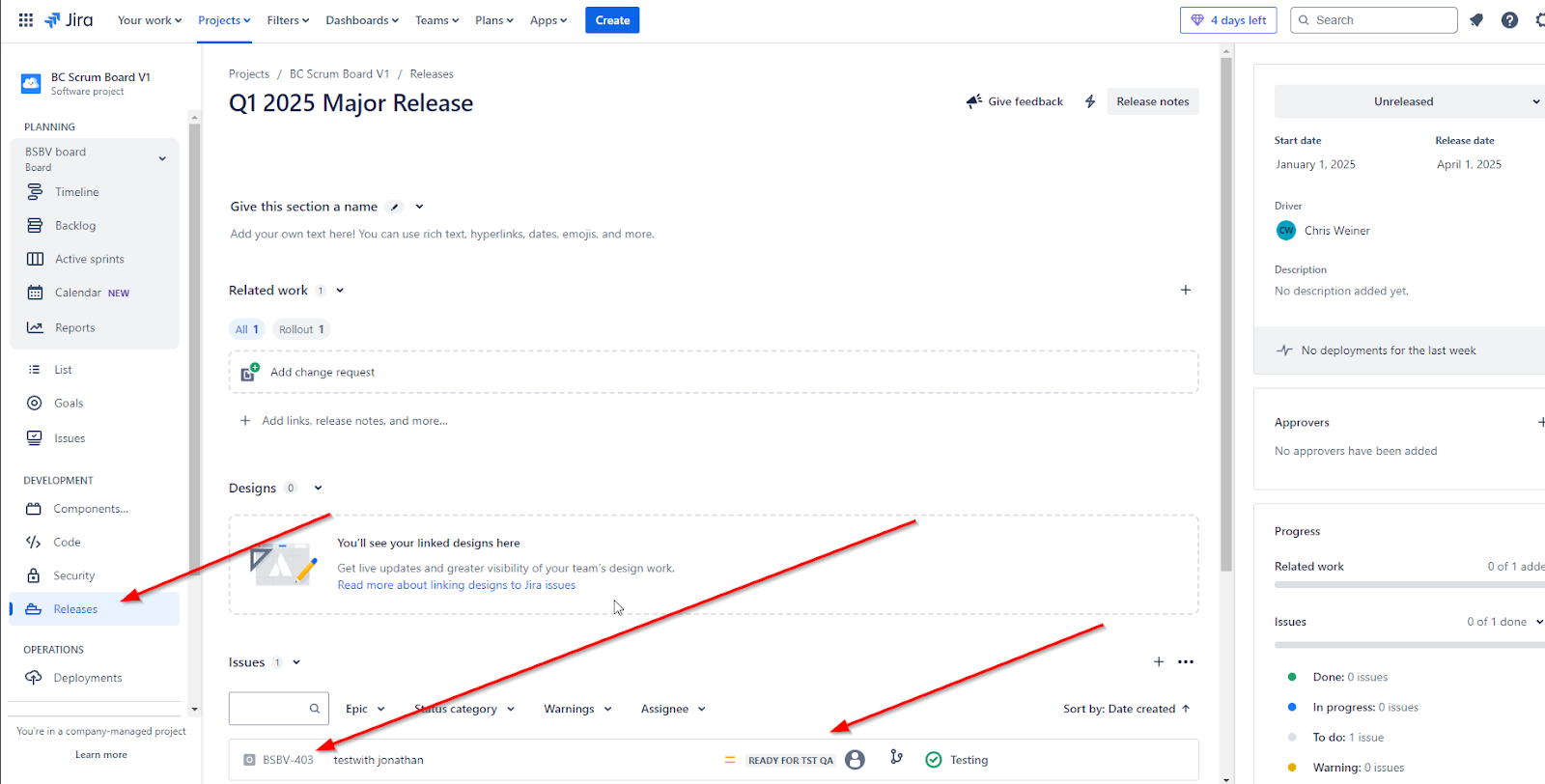
Example of a JIRA ticket with its project/number:
Jenkins Pipeline for Automated Builds
The Jenkins pipeline automates builds and tests after each commit, providing immediate feedback to developers. Below you'll find the code I used with comments to explain and give context.
pipeline {
    agent any // set Jenkins to use first available agent
    environment {
        // These can be updated to be placeholder variables in Jenkins as params
        // if you prefer to stay away from setting them in the script explicitly
        GIT_REPO = 'https://github.com/InsertYourRepoHere.git'
        GIT_BRANCH = 'master' // main, master - your deployment branch
        DOCKER_COMPOSE_FILE = 'docker-compose.yml'
        ENV = 'TST' // Environment variable to be used throughout the script
        SLACK_CHANNEL = '#build-notice' // Channel for build announcements
    }
    stages {
        stage('Checkout Code') {
            // Stages are used within the Jenkins/JIRA plugin to establish
            // what constitutes an update with JIRA
            steps {
                echo "Checking out code from branch: ${env.GIT_BRANCH}..."
                git branch: "${env.GIT_BRANCH}", url: env.GIT_REPO

                script {
                    def commitMessage = sh(
                        script: 'git log -1 --pretty=%B',
                        returnStdout: true
                    ).trim()
                    echo "Commit message: ${commitMessage}"

                    // Extract JIRA issue key from the commit message
                    def jiraIssueKey = commitMessage.find(/BSBV-\d+/)
                    if (jiraIssueKey) {
                        echo "JIRA issue key found: ${jiraIssueKey}"
                        env.JIRA_ISSUE_KEY = jiraIssueKey
                    } else {
                        error("No JIRA issue key found in the commit message")
                    }
                }
            }
        }

        stage('Build and Start App') {
            steps {
                echo 'Building and starting the app...'
                sh 'docker-compose -f ${DOCKER_COMPOSE_FILE} up -d --build'
                sh 'docker-compose -f ${DOCKER_COMPOSE_FILE} ps'

                // Send build info to JIRA using Jenkins/JIRA plugin
                jiraSendBuildInfo site: 'YourJiraInstanceHere.atlassian.net'
            }
        }

        stage('Run API Tests') {
            steps {
                echo 'Running API Tests...'
                script {
                    def apiTestResult = sh(
                        script: 'docker-compose -f ${DOCKER_COMPOSE_FILE} ps -q api || echo "API container not found"',
                        returnStatus: true
                    )
                    if (apiTestResult == 0) {
                        echo 'API Tests Passed'
                        env.API_TEST_RESULT = 'API-Test-Passed'
                    } else {
                        echo 'API Tests Failed'
                        env.API_TEST_RESULT = 'API-Test-Failed'
                    }
                }
            }
        }

        stage('Run Frontend Tests') {
            steps {
                echo 'Running Frontend Tests...'
                script {
                    def frontendTestResult = sh(script: '''
                    docker-compose -f ${DOCKER_COMPOSE_FILE} ps -q frontend || echo "Frontend container not found"
                    FRONTEND_CONTAINER_ID=$(docker-compose -f ${DOCKER_COMPOSE_FILE} ps -q frontend)
                    if [ -z "$FRONTEND_CONTAINER_ID" ]; then
                        echo "Frontend container not running. Skipping tests."
                        exit 1
                    fi

                    docker exec $FRONTEND_CONTAINER_ID sh -c '
                    if [ -f package.json ]; then
                        npm test
                    else
                        echo "No package.json found. Skipping frontend tests."
                    fi
                    '
                    ''', returnStatus: true)

                    if (frontendTestResult == 0) {
                        echo 'Frontend Tests Passed'
                        env.FRONTEND_TEST_RESULT = 'Frontend-Test-Passed'
                    } else {
                        echo 'Frontend Tests Failed'
                        env.FRONTEND_TEST_RESULT = 'Frontend-Test-Failed'
                    }
                }
            }
        }

        stage('Deploy to TST') {
            steps {
                echo 'Deploying to TST environment...'
                // Add deployment logic here if not defined in Docker Compose

                // Map TST to 'Testing' in JIRA
                jiraSendDeploymentInfo site: 'YourJiraInstanceHere.atlassian.net',
                    environmentId: 'testing'
            }
        }
    }

    // Post section shows how to update custom/default field values in JIRA
    // using a Token generated via JIRA administration
    post {
        always {
            echo 'Cleaning up workspace...'
            cleanWs()

            script {
                if (env.JIRA_ISSUE_KEY) {
                    echo "Updating JIRA issue ${env.JIRA_ISSUE_KEY} with labels"

                    withCredentials([
                        string(credentialsId: 'JIRA_AUTH_TOKEN', variable: 'JIRA_AUTH_TOKEN')
                    ]) {
                        sh '''
                        AUTH_TOKEN=$(echo -n "service-account@company.com:${JIRA_AUTH_TOKEN}" | base64 --wrap=0)

                        curl --http1.1 -v -X PUT \
                        -H "Authorization: Basic $AUTH_TOKEN" \
                        -H "Content-Type: application/json" \
                        --data '{"update": {"labels": [{"add": "'${API_TEST_RESULT}'"}, {"add": "'${FRONTEND_TEST_RESULT}'"}]}}' \
                        https://YourJiraInstanceHere.atlassian.net/rest/api/3/issue/${JIRA_ISSUE_KEY}
                        '''
                    }
                } else {
                    echo "No JIRA issue key found. Skipping JIRA update."
                }
            }
        }

        success {
            echo 'Build succeeded!'
            jiraSendDeploymentInfo site: 'YourJiraInstanceHere.atlassian.net',
                environmentId: 'tst', state: 'successful'
            slackSend(channel: env.SLACK_CHANNEL,
                message: "Build succeeded: ${env.JOB_NAME} - ${env.BUILD_NUMBER}")
        }

        failure {
            echo 'Build failed!'
            jiraSendDeploymentInfo site: 'YourJiraInstanceHere.atlassian.net',
                environmentId: 'tst', state: 'failed'
            slackSend(channel: env.SLACK_CHANNEL,
                message: "Build failed: ${env.JOB_NAME} - ${env.BUILD_NUMBER}")
        }
    }
}
Like the other tools we've discussed, there's no doubt that the Jenkins pipeline saves time for developers. It provides both automatic builds after every commit and integration with Slack to notify the team of success or failure. Additionally, the JIRA status automatically updates based on build results, keeping everyone informed and eliminating the need for manual updates.
Pipeline Configuration Location
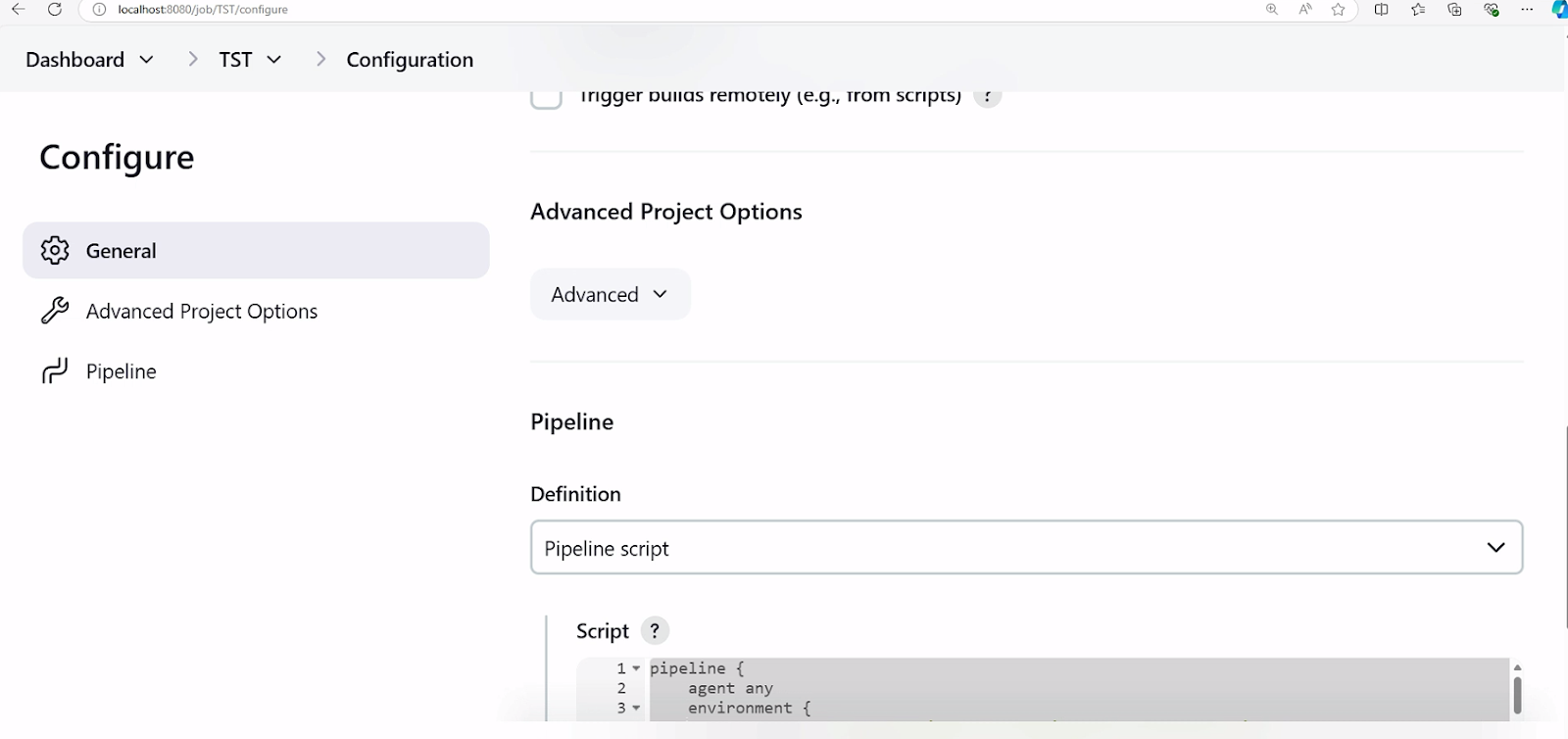
Below is the context as to where you would be adding your custom pipeline script (assuming you choose to use pipeline script via the dropdown). I highly recommend updating your script outside of Jenkins in a VSCode or editor of your choice to help with handling formatting and catching initial errors.
Slack Plugin Configuration
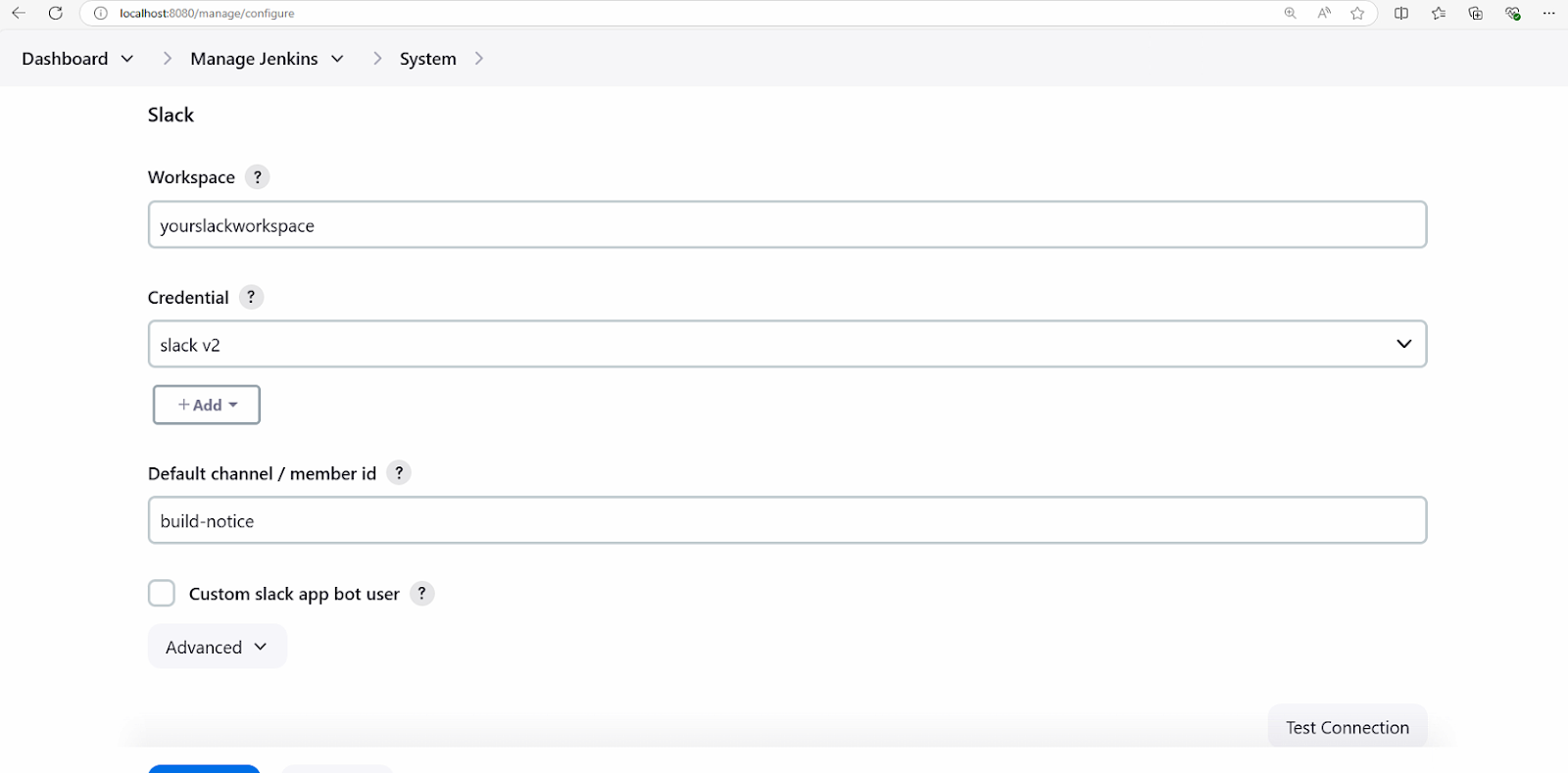
Below we see how the Slack Plugin for Jenkins has configurable fields. The picture below outlines a basic configuration notifying a single channel of a build message. If needed, you can configure a bot within Slack or Teams to handle reminders and personal notifications and even update reporting tables via webhooks.
JIRA and Jenkins Integration for Build Updates
The tight integration between Jenkins and JIRA provides automation benefits that streamline development workflows. After a build is completed, Jenkins can automatically update JIRA to advance tasks in the pipeline, reducing the need for manual updates and ensuring everyone has access to real-time information.
Leveraging Git in JIRA
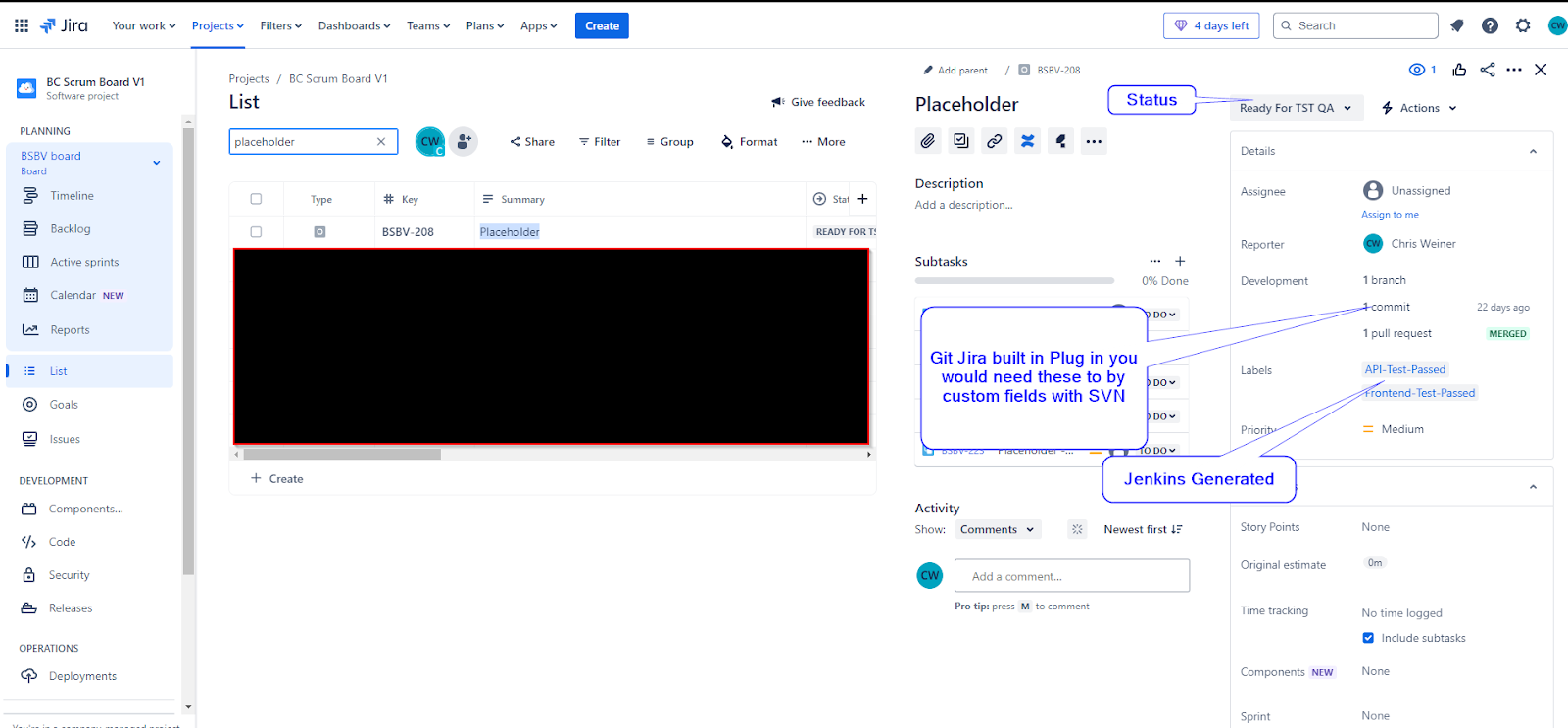
By linking Git commits to JIRA issues, developers can ensure that JIRA automatically logs these changes, creating a seamless connection between code updates and task tracking. Here's an example:
Using the JIRA Jenkins Configuration Plugin
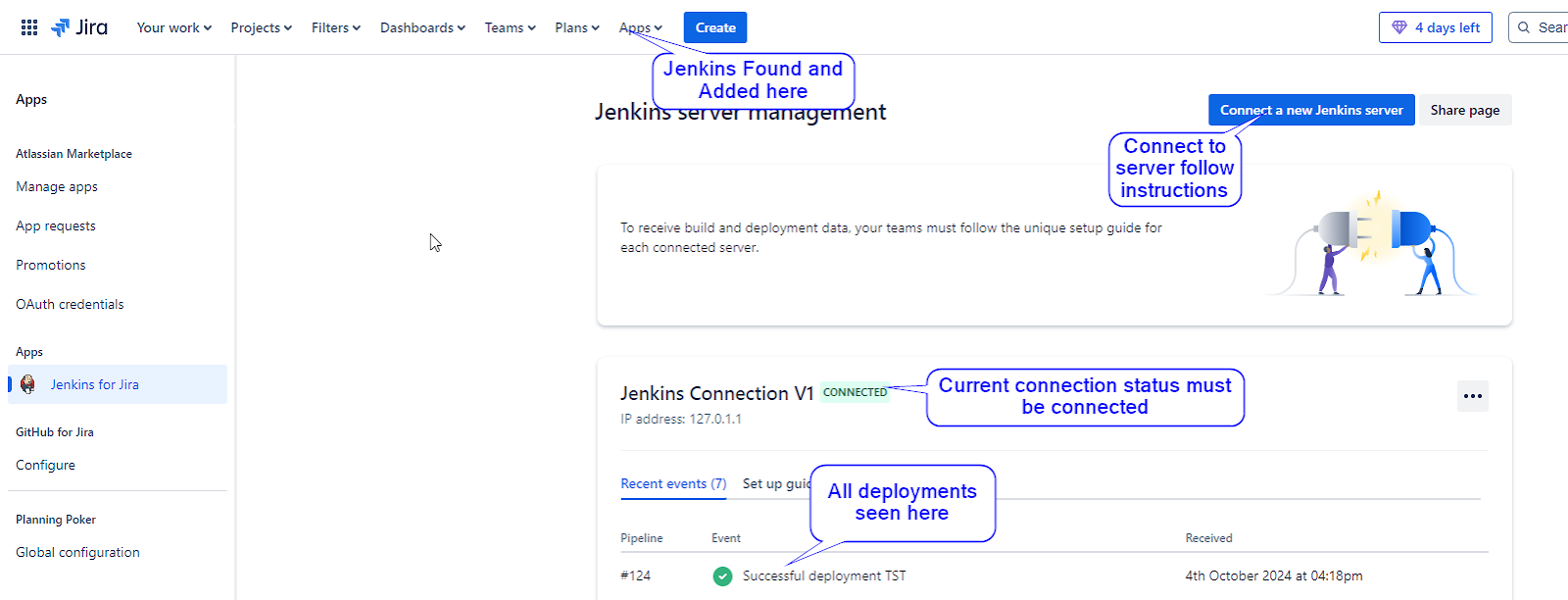
The JIRA Jenkins Configuration plugin allows teams to configure Jenkins to update JIRA issues based on the build status, keeping task statuses in sync with the CI/CD pipeline stages. Here's what it looks like:
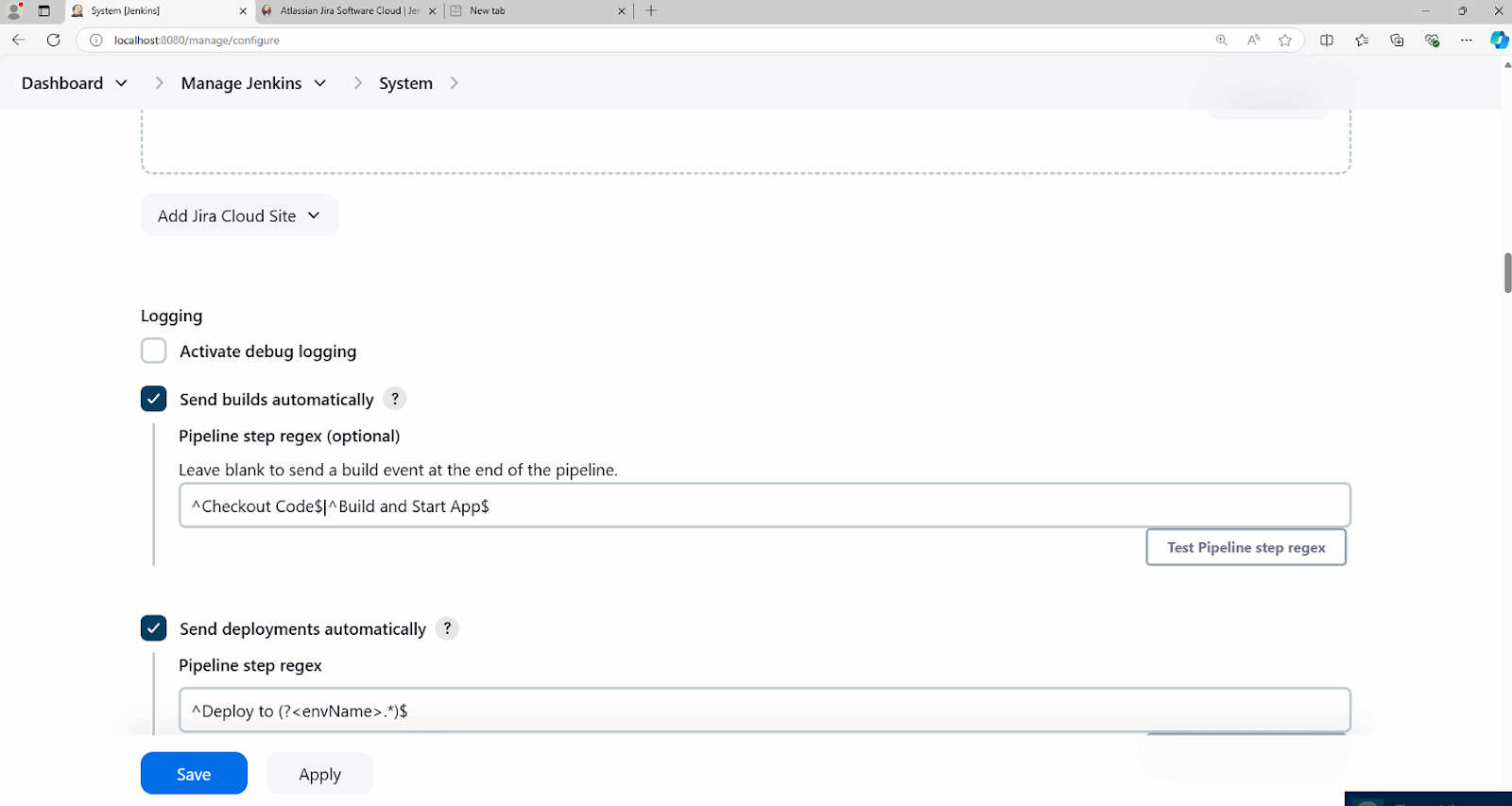
Regex for Pipeline Automation
A regex can be used within the Jenkins pipeline script to align specific commits with JIRA workflow stages or environments, allowing automatic transitions based on pre-defined keywords or conditions in the commit messages.
Here's an example of how regex directly aligns with stages and environments within the pipeline script:
When all is said and done, this integration reduces overhead by automating updates and improving transparency. Developers don't need to worry about updating story statuses. QA knows exactly which stories are ready for testing. Product Owners can plan sprints based on real-time, accurate data.
JIRA Releases and UAT Deployments
By using JIRA's release management feature, the team can track the exact status of every feature throughout the sprint. Automated updates from Jenkins ensure that JIRA always reflects the most up-to-date state of the project.
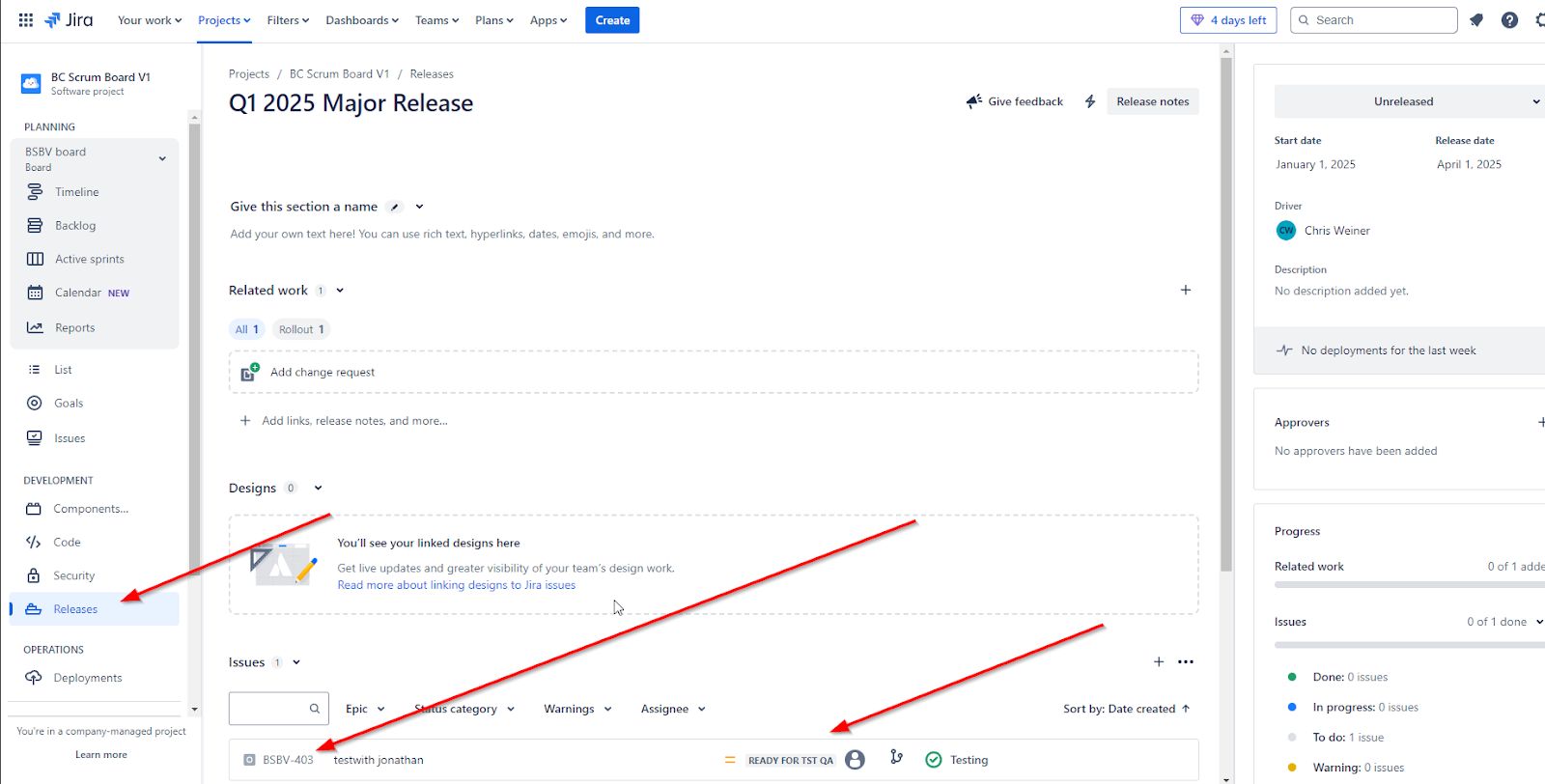
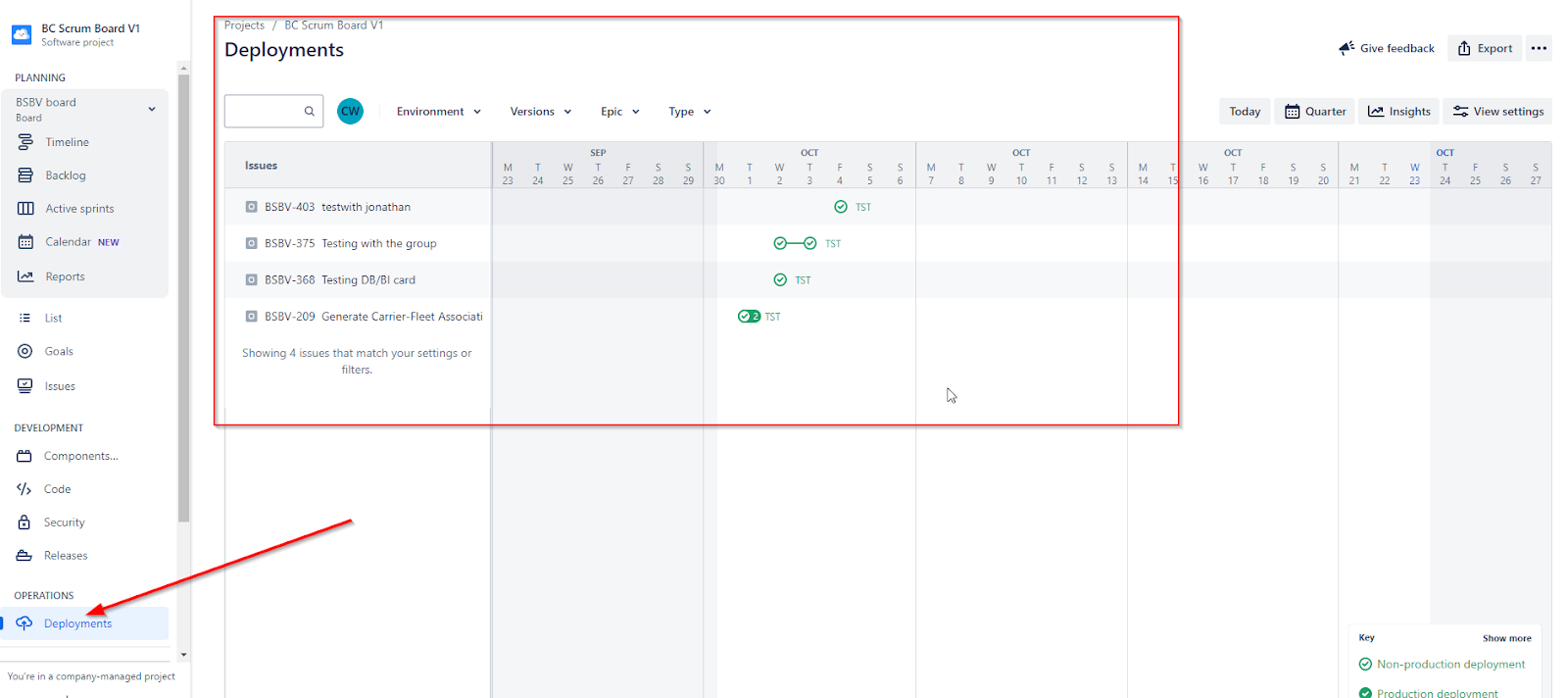
When it's time for UAT, Jenkins handles deployments, and JIRA keeps everyone informed. This level of automation makes it easy for release managers and Product Owners to know which features are ready for final testing without asking the team for updates.
Production Deployment
Finally, Jenkins automates the entire production deployment pipeline. After UAT is completed and validated, Jenkins handles the final deployment to production. JIRA is automatically updated, and the entire team is informed via Slack notifications.
For the team, this is a game-changer! Developers and Testers know the production process is reliable. Product Owners can confidently monitor go-live processes without constant oversight. Team Leads can focus on planning, knowing that builds and deployments are running smoothly.
Conclusion
Today, we talked through CI/CD automation with tools like JIRA Cloud, Jenkins, Slack, GitHub, SVN, and Postman. Streamlining the JIRA process with CI/CD automation benefits the entire team, reducing the time spent on repetitive tasks and freeing up valuable time for more impactful work.
Whether your team is new to Agile or has years of experience, automating your pipeline ensures everyone stays focused on what really matters—delivering great software. With these tools in place, your team will have more time for creative problem-solving, while staying aligned and reducing administrative overhead.